Everyday photographer
A stranger crosses the far edge of a holiday photo saved in Google Photos.
Try a small, isolated selection first, then inspect the background before keeping the edit.
Photo editing guide
A magic eraser can remove a small distraction from a photo, but finding the control in Google Photos depends on your device and app version. This guide takes you from opening the image to checking the saved result.
Before editing, open the photo in an up-to-date Google Photos app and check that its editing tools are available on your device. Keep the original so you can compare results or start over.
The right starting point depends on where the image lives and what you need to do after removing the distraction.
A stranger crosses the far edge of a holiday photo saved in Google Photos.
Try a small, isolated selection first, then inspect the background before keeping the edit.
The editing menu looks different from a tutorial filmed on another phone.
Use the Pixel-specific walkthrough to locate the available control rather than guessing from screenshots.
A photo needs a quick cleanup before it is shared from a phone.
Check the iPhone workflow and confirm that the edited copy looks right outside the editor.
The cleaned image will later sit inside a poster or social graphic.
Compare editing the source photo first with working on the placed image in Canva.
Imagine a street photo with a small bin against an otherwise clear wall. Work from the full image down to the edges of that one object.
In Google Photos, select the street photo and tap Edit. Look for Magic Eraser among the available tools; its location can change with app and device updates. If you cannot find it, check the app version and the tool list before assuming the photo is unsupported.
If the app suggests objects, choose the bin only. Otherwise, brush over or circle it, keeping nearby wall texture outside the selection where possible. Review the first fill before making another pass; a larger selection is not automatically a better one.
Zoom in on the wall, pavement line, and the bin's former shadow. Undo and retry with a tighter selection if an outline remains. Tap Done, then save the result using the option your app presents, preferably preserving the original when that choice is available.
These are different routes for different starting points, not interchangeable controls inside one app.
| Google Photos Magic Eraser | Magiceraser editing route | |
|---|---|---|
| Starting point | A photo opened in the Google Photos app | An image you choose to take into a separate editing workflow |
| Where to look | The photo's Edit tools; placement varies by app version | Follow Magiceraser's editing CTA to inspect the available workflow |
| Small distractions | Select a suggested object or mark the area, if those controls appear | Check the available image-editing controls before committing to an edit |
| Existing library | Works from the photo you have opened in Google Photos | Does not edit your Google Photos library directly |
| Saving | Use the save option shown by your app; preserve the original when offered | Review the destination's available save or export options |
| Best fit | A quick correction while reviewing a photo in your library | Exploring a separate image workflow when you do not need an in-library edit |

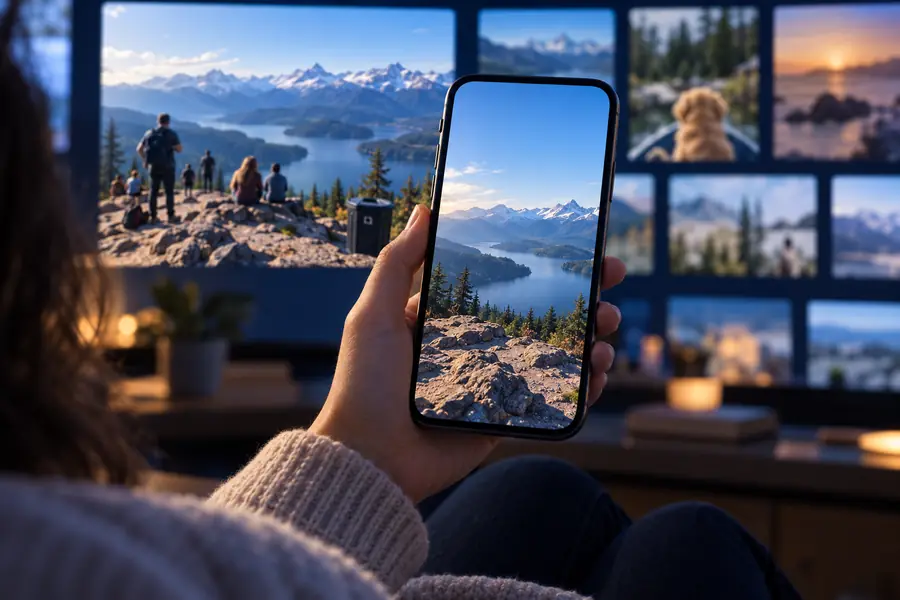
This pair illustrates what to inspect, not a verified output from Google Photos. Compare edges, shadows, and repeated textures at full size before sharing any edited photo.
Before cleanupIllustrative cleanupA magic eraser estimates what should appear behind a selection. It cannot recover background detail the camera never captured.
Removing a person who blocks a face, sign, or distinctive building feature can produce a plausible-looking but inaccurate fill.
What to do instead
Keep the original, crop if possible, or use another frame where the detail is visible.
Brickwork, railings, and pavement seams may bend or duplicate after a magic eraser pass, especially across a wide selection.
What to do instead
Try smaller selections and inspect the result at full resolution.
Google Photos menus and feature availability vary by device, app version, and account. Magiceraser cannot enable a missing Google Photos control.
What to do instead
Update the app, check its current editing menu, or consider a separate workflow.
Selecting the object but not its cast shadow can leave an obvious trace; selecting too much can damage the surrounding scene.
What to do instead
Undo, then test careful passes over the object and shadow separately.
If the Google Photos tool is unavailable or its result does not hold up on close inspection, explore Magiceraser's editing route. Check the available controls and save options there; it is not a shortcut into your Google Photos library.
Open a photo and tap Edit, then look through the available editing tools for Magic Eraser. Its position can differ between app versions and devices, so a screenshot from another phone may not match your menu.
First check that Google Photos is updated and that you are editing a supported photo in the app. Feature availability and menu layouts can vary by device and account; if the control still is not shown, do not assume that another site's magic eraser can turn it on.
No. A person against a simple background is generally easier to remove than one covering another person or a detailed pattern. Inspect the reconstructed area for warped lines, repeated texture, and leftover shadows.
You can normally undo a selection while you are still in the editor. Before saving, check whether Google Photos offers a way to preserve the original or save a copy; the exact choices shown can vary.
No. Magic Eraser is a control you may find while editing in Google Photos, whereas Magiceraser points you toward a separate image-editing route. Using that route does not change a photo in your Google Photos library automatically.