Travel photographer
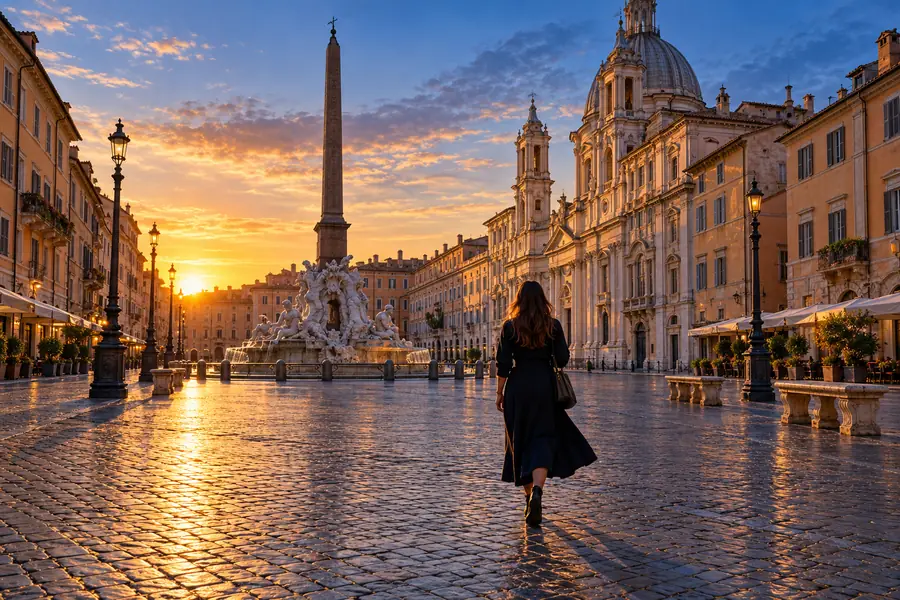
A stranger crosses a landmark shot and blocks part of a railing or pavement seam.
Check whether the restored lines meet naturally. For broader framing and cleanup ideas, magic eraser photo covers editing a photograph as a whole.
Photo cleanup
A magic eraser edit can clear an unwanted passerby, but the space behind that person has to be reconstructed. Start with the original image, then inspect the replacement background before using the result.
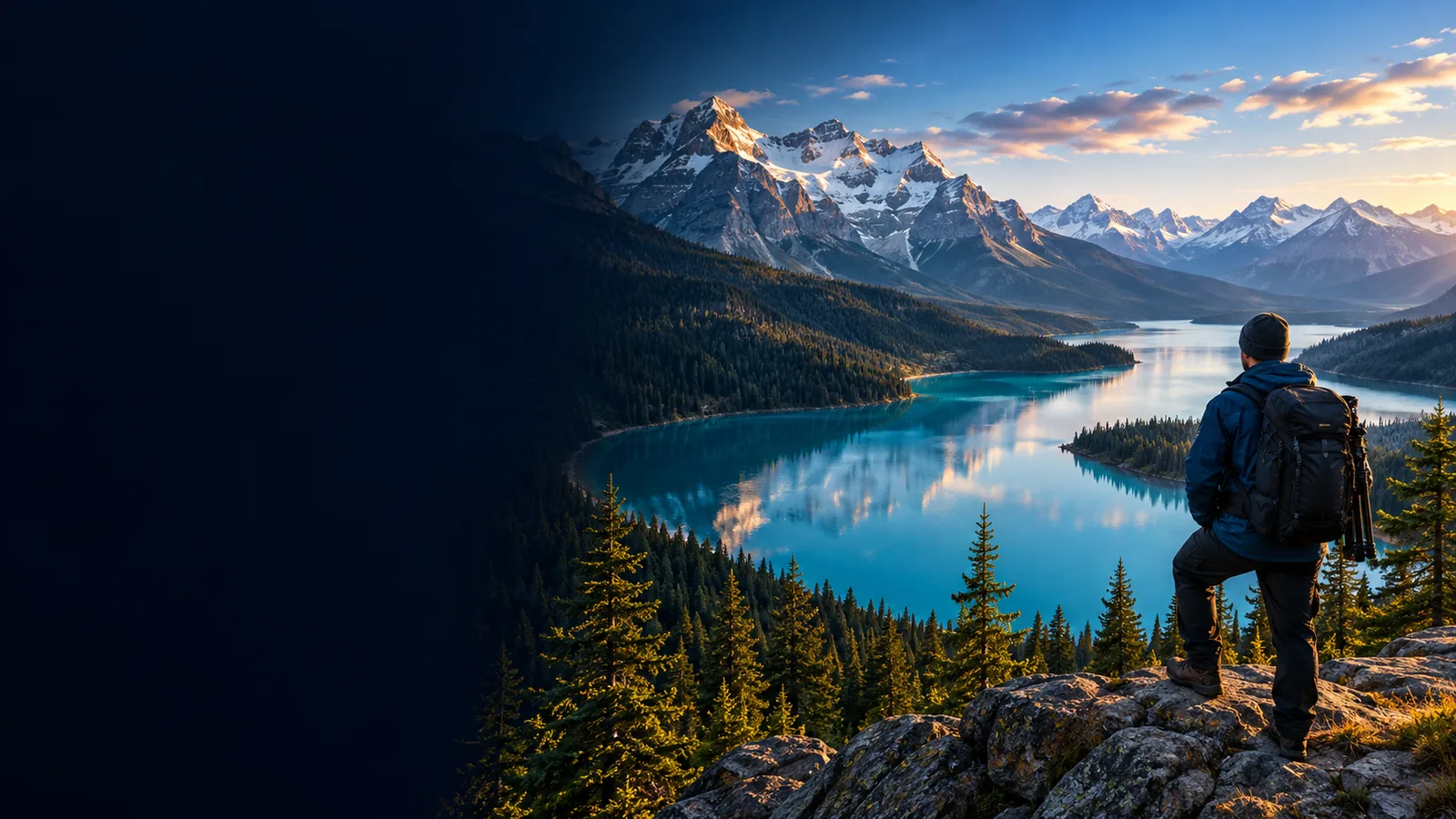
Drag the divider to compare a source frame with its edited counterpart. Look beyond the missing distraction: background continuity is what makes a removal convincing.
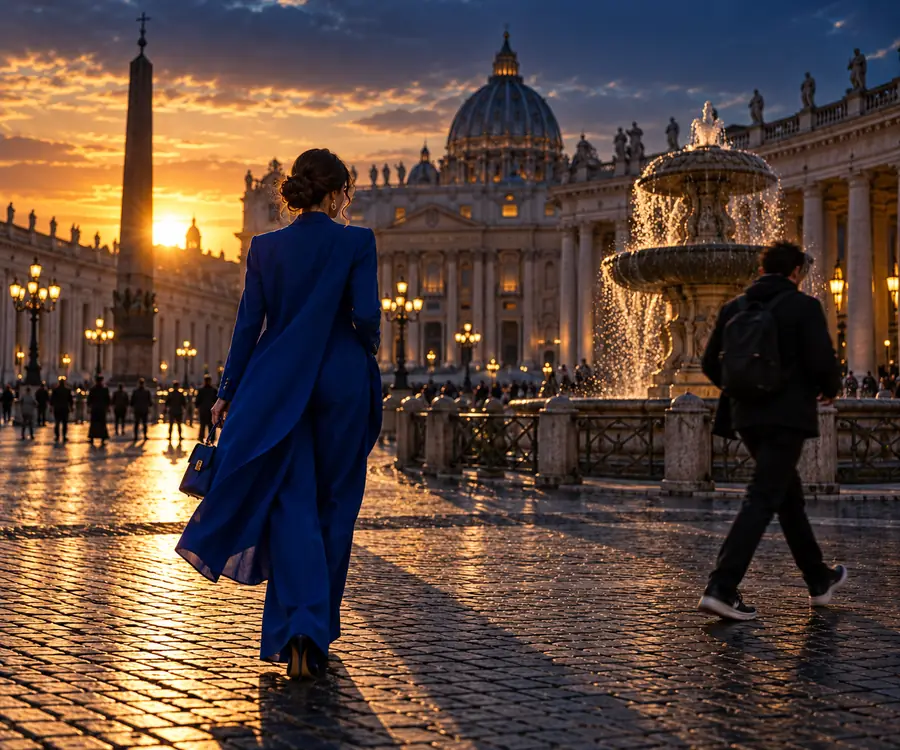
Before
In your own photo, compare subject edges, repeating patterns, shadows, and the area previously hidden by the person. A smooth-looking thumbnail can still contain visible defects at full size.
After
Removing a person also removes every visible detail they covered. These common jobs call for different checks once a magic eraser has filled the gap.
A stranger crosses a landmark shot and blocks part of a railing or pavement seam.
Check whether the restored lines meet naturally. For broader framing and cleanup ideas, magic eraser photo covers editing a photograph as a whole.
A guest appears beside a sign, with lettering partly hidden by their shoulder.
Removing the guest cannot recover obscured letters. If visible lettering itself needs cleanup, remove text from image addresses that separate task.
A person stands in front of a patterned wall, making the room look busier.
Compare repeated wallpaper details and floor joints. For a broader change to the scene rather than a local removal, image to image explains that different approach.
A person overlaps a visible ownership mark in an old promotional image.
Keep rights and permissions separate from visual cleanup. Remove watermark from image discusses marks as a distinct editing problem, not a way to establish permission.
Use the original as your reference and judge the edited frame against it. A magic eraser may replace visible pixels, but it cannot reveal a background the camera never captured.
| Original photo | Edited photo | |
|---|---|---|
| Person | Visible in the scene | Targeted for removal |
| Hidden background | Blocked by the person | Estimated from surrounding image details |
| Main subject | Original edges and features | Should remain unchanged; inspect overlaps closely |
| Straight lines | Existing seams and perspective | May need checking where they cross the filled area |
| Light and shadow | Includes the person's shadow | Should be consistent after the person is gone |
| Image record | Documents what the camera captured | A modified representation, not an unaltered record |
These site examples illustrate visual checks, not a guarantee that a magic eraser will reproduce any particular hidden detail. Inspect your own source and output side by side.
 Edges
Edges
 Texture
 Lighting
A magic eraser is useful for visual cleanup, not for recovering information absent from the photograph.
If a person covers a sign, face, or object, the original photo contains no view of what is behind them.
What to do instead
Use another original frame as a reference when factual accuracy matters.
Hair, hands, reflections, and overlapping silhouettes make it hard to separate the unwanted person from what you want to keep.
What to do instead
Compare the result at full size and retain the unedited original.
Removing someone changes the record of who was present, even if the resulting image looks natural.
What to do instead
Disclose the edit when the image is used for news, records, or other factual purposes.
Describe the person you want removed and the parts of the scene that must stay intact. After following the link, check which editing options are available, then compare any result with your original.
The background hidden behind a person is not present in the source image, so an edit must estimate that area. Small removals against simple surfaces may look more consistent than edits across faces, signs, or complex patterns.
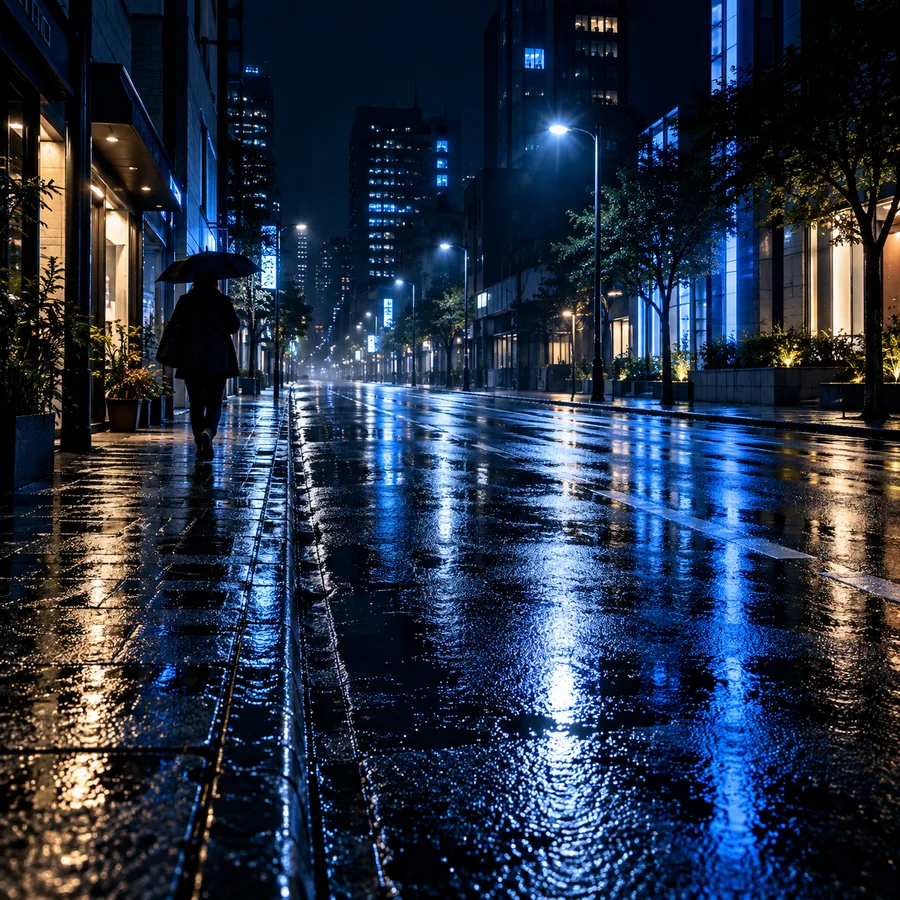
Zoom in on the former outline and look for repeated textures, broken lines, blurred edges, and shadows left behind. Then view the entire photo to see whether the lighting and composition still make sense.
An overlap makes the edit harder because parts of the subject may be selected or reconstructed along with the person. Compare the subject's original outline and features closely, and use another photo if preserving them accurately is essential.
Not necessarily. A fill can produce a plausible-looking background, but it cannot prove what the camera would have seen. Keep the original and avoid presenting the edited area as an unaltered record.